Barrie Matthews (LEARNZ Project/Technical Manager) facilitated this session (with Vicki Hagenaars - a classroom teacher extraordinaire with a focus on digital based learning - also sharing some of her experiences). The session covered the benefits of Virtual Fieldtrips, looking at pedagogies, and encouraging participants to consider opportunities for, for example, students with SEN - due in part to the virtual nature of trip. (You can access a recording of the session here: http://connect.vln.school.nz/p89382630/; and the presentation show during the session here: http://connect.vln.school.nz/p36401599/).
Previous to the session, Vicki wrote I have used "LEARNZ as a method for making my students aware they can be part of an online, collaborative learning environment. They are always amazed that their questions are mirrored and answered during audioconfereces. The best learning engagement so far has been the one trip last year that we sent an ambassador on - huge buy in to the daily diaries and fully understanding the trip we sent our dolphin friend Poseidon on".
Barrie started by providing a brief overview of LEARNZ, but giving an overview of a recent trip called Kids restore the Kepler. As well as students being involved, it also showed that individuals can take positive actions themselves. Barrie talked about how to choose fieldtrips, and Vicki gave some insight how she goes about choosing trips by, for example, having a look at the planned fieldtrips at the beginning of the year and taking note of what and when so that she can plan them into her. The fieldtrips are also supported by outside organisations.
The online space for LEARNZ has recently been re-designed and it's much easier to use than it used to be to find your way around and use. The site has a range of features such as an integrated glossary. Vicki said that she uses the background pages about a week ahead to help start her learners thinking about the subject. She usually uses a buddy reading approach, followed by a lot of discussion and research around further ideas before the fieldtrip 'kicks off'.
All of the fieldtrips are curriculum integrated, and even though the most obvious link are science, maths, environmental education, there have been other focii such as health, art and history. For example, a recent fieldtrip involved students working with Ngāi Tahu visiting sites around Timaru, making the pigments, history, contemporary use etc. Vicki mentioned that the curriculum objectives are really useful, and helps her to engage students with relevant authentic activities and tasks. Many of the fieldtrips are aimed across sectors, and can be adapted for junior secondary.
All of the fieldtrips are curriculum integrated, and even though the most obvious link are science, maths, environmental education, there have been other focii such as health, art and history. For example, a recent fieldtrip involved students working with Ngāi Tahu visiting sites around Timaru, making the pigments, history, contemporary use etc. Vicki mentioned that the curriculum objectives are really useful, and helps her to engage students with relevant authentic activities and tasks. Many of the fieldtrips are aimed across sectors, and can be adapted for junior secondary.
The LEARNZ Newsletters are quite useful because they provide deadlines, especially when ambassadors from a school have been sent.
The LEARNZ initiative is organic, and the team really appreciate input from the students and teachers who participate. Pete Sommerville (the LEANRZ project director who was also at the session) mentioned that "Without exception the evolution of LEARNZ has been as a result of excellent feedback from teachers". One example shared by Pete was re the Kids restore the Kepler: ''The two versions of the text was useful. The inclusion of te reo Māori was excellent " (teacher feedback). A comment from another teacher was '' I find the field trips as a great way of introducing vocab and scientific language to students. As well as teaching inquiry skills and science knowledge. I used the glossary section of the web site and selected words to use for word study prior to the field trip. We used the words for spelling activities, dictionary skills and quick writing activities. This is helpful for ESOL students that can have difficulty with vocab".
Teachers can send a class mascot or toy, for $30, on a trip. Each of the mascots has their own page. It helps cement the relationship and gives a bit of buy in. Vicki was a bit unsure that Intermediate students would buy into having a mascot go on a trip, but she found that having a mascot involved, and reading their ambassador's diary really helped engaged the students. Barrie also mentioned that secondary schools have had similar experiences. Anne K, in the chat said "Love the idea of a mascot travelling.... adds another dimension to the class involvement. [Brings] an almost face to face dimension tot he virtual trip". Ambassadors are usually returned, although there was a recent fatality rafting the Tongariro.
Students can post questions on the forums for the experts on the fieldtrips. Using an landline phone, Skype, and the audio bridge, students are able to connect with folk on the field trips via audioconferences, and post their questions in advance. Vicki mentioned that the "kids get quite a buzz out of being involved", and Pete said "Visual learning in a shared group is much less threatening than learning by yourself so there is a greater level of focus as you are supported". Often there are students from a number of schools, geographically dispersed, all online and asking questions at the same time. There is no video with it, for many reasons, but Vicki advised that "When we are listening I tend to have a print out of the questions for the students to make notes on. Gives them focus". One teacher commented "Sometimes our computers don't oblige and that can be frustrating for the kids and me - that’s a school issue but does affect how we use the website. But this won’t put me off continuing to use LEARNZ as for the children who take part, it is the audio conference that stays with them. And for me especially it is the way Andrew relates to the children - his commitment and warmth come through in all his interactions, even though he has done these trips before he always makes them fresh and exciting".
The videos are one of the biggest learning opportunities and a couple of iterations later the videos are being put on to Vimeo, and are being accessed by mobile devices, as well as being downloaded to local machines or networks to be watched. Examples of videos can be accessed at:
Kids are challenged to 'do' something, and to take it to the next level. Schools have been inspired to create their own trips, and Pete shared that "Ah yes we do hear of schools organising their own trips - Stuart Cook from Methven School has a great story to tell about that". Barrie shared that if you are interested in signing up for any of the fieldtrips you can:
Teachers can send a class mascot or toy, for $30, on a trip. Each of the mascots has their own page. It helps cement the relationship and gives a bit of buy in. Vicki was a bit unsure that Intermediate students would buy into having a mascot go on a trip, but she found that having a mascot involved, and reading their ambassador's diary really helped engaged the students. Barrie also mentioned that secondary schools have had similar experiences. Anne K, in the chat said "Love the idea of a mascot travelling.... adds another dimension to the class involvement. [Brings] an almost face to face dimension tot he virtual trip". Ambassadors are usually returned, although there was a recent fatality rafting the Tongariro.
Students can post questions on the forums for the experts on the fieldtrips. Using an landline phone, Skype, and the audio bridge, students are able to connect with folk on the field trips via audioconferences, and post their questions in advance. Vicki mentioned that the "kids get quite a buzz out of being involved", and Pete said "Visual learning in a shared group is much less threatening than learning by yourself so there is a greater level of focus as you are supported". Often there are students from a number of schools, geographically dispersed, all online and asking questions at the same time. There is no video with it, for many reasons, but Vicki advised that "When we are listening I tend to have a print out of the questions for the students to make notes on. Gives them focus". One teacher commented "Sometimes our computers don't oblige and that can be frustrating for the kids and me - that’s a school issue but does affect how we use the website. But this won’t put me off continuing to use LEARNZ as for the children who take part, it is the audio conference that stays with them. And for me especially it is the way Andrew relates to the children - his commitment and warmth come through in all his interactions, even though he has done these trips before he always makes them fresh and exciting".
The videos are one of the biggest learning opportunities and a couple of iterations later the videos are being put on to Vimeo, and are being accessed by mobile devices, as well as being downloaded to local machines or networks to be watched. Examples of videos can be accessed at:
- http://kidsrestorethekepler132.learnz.org.nz/ (Usr: webinar1Pwd: webinar1); and
- https://vimeo.com/68100107.
Kids are challenged to 'do' something, and to take it to the next level. Schools have been inspired to create their own trips, and Pete shared that "Ah yes we do hear of schools organising their own trips - Stuart Cook from Methven School has a great story to tell about that". Barrie shared that if you are interested in signing up for any of the fieldtrips you can:
- Register: http://www.mylearnz.org.nz/index/register
- To choose field trips: http://www.learnz.org.nz/field-trip-chooser.php
- And to get started: http://help.learnz.org.nz/getting-started/
Images:
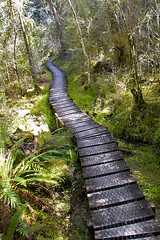
- 'The path' http://www.flickr.com/photos/28989956@N00/4126509030 Found on flickrcc.net
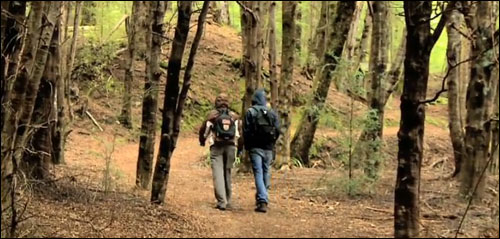
- Returning birdsong to a Great Walk; LEARNZ http://rata.learnz.org.nz/summary.php?vft=kidsrestorethekepler132




![Reblog this post [with Zemanta]](http://img.zemanta.com/reblog_a.png?x-id=9b5d952b-3458-423c-a4b2-70906631a497)

![Reblog this post [with Zemanta]](http://img.zemanta.com/reblog_a.png?x-id=decb79bf-0fe0-4b85-9034-a3f05db08aa0)
![Reblog this post [with Zemanta]](http://img.zemanta.com/reblog_a.png?x-id=9cb3eb69-3b86-4221-bbec-b65415ee5652)


 Posts
Posts